Taalhammer for Claude and AI assistants (MCP connector)
Last updated: 7 November 2026
Connect Taalhammer to Claude (and other AI assistants that support MCP, the Model Context Protocol) and learn languages right inside a conversation. Ask how Taalhammer works, find courses and radio stations, review your own flashcards, or turn sentences from the chat into a new collection. Once you sign in, the assistant works with your real Taalhammer account.
Taalhammer is a sentence-based language-learning app. Reviews are timed by a spaced-repetition algorithm (our own variant of SM-2; an FSRS-based scheduler runs in a pilot), and you practise whole sentences with active recall and listening. Learn more at taalhammer.com.
Server URL
https://mcp.taalhammer.com/mcp
How to connect
Claude (claude.ai and Claude Desktop)
-
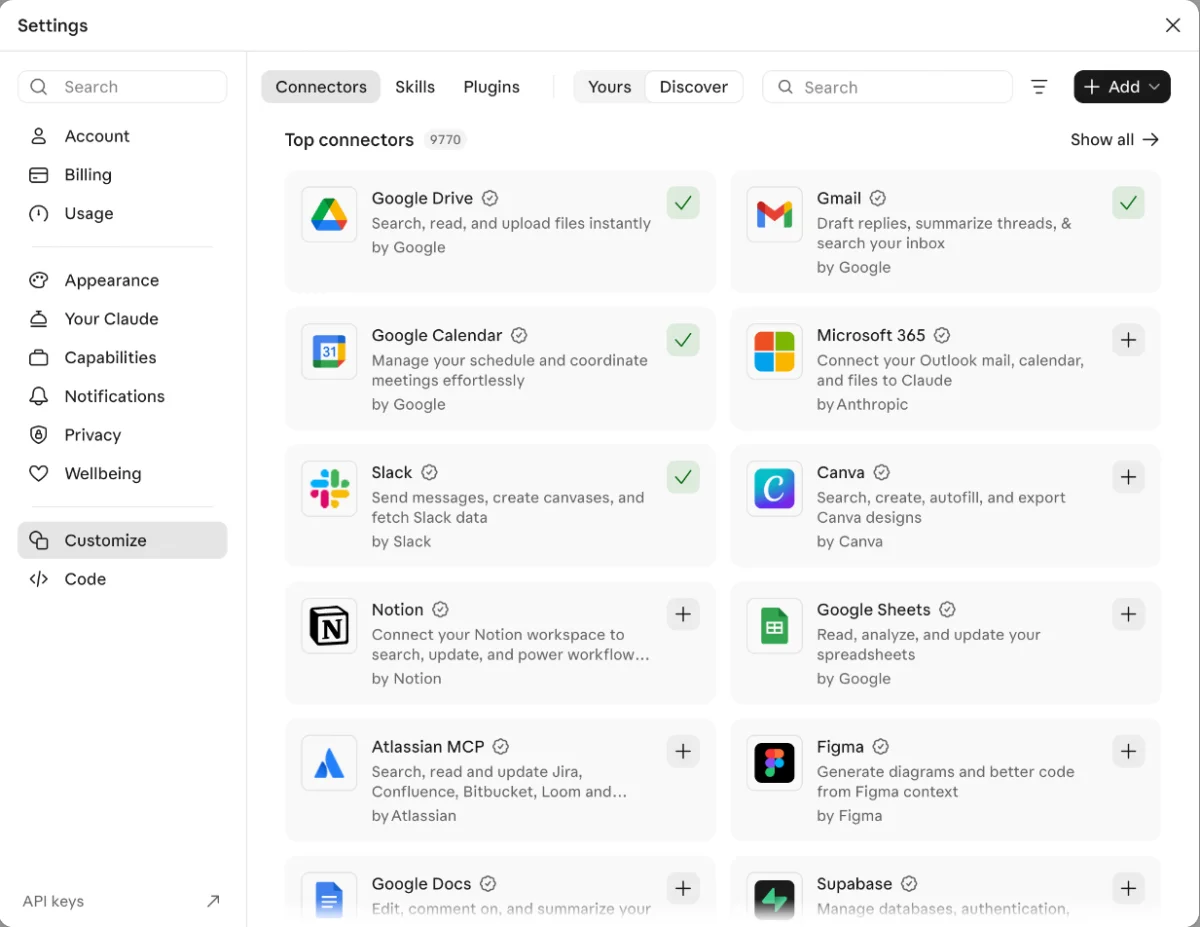
Open Settings → Customize → Connectors.
-
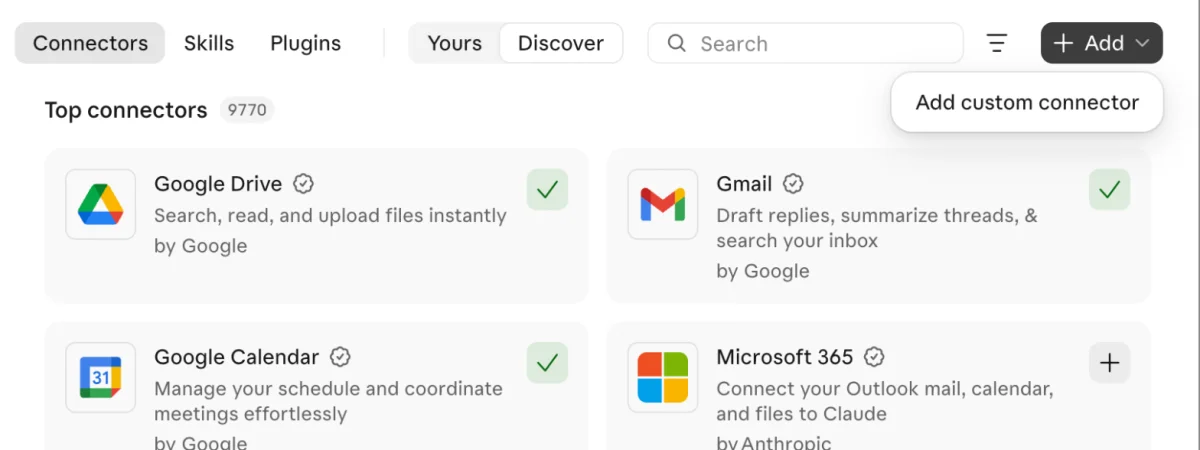
Click + Add and choose Add custom connector.
-
Name it Taalhammer, paste the server URL
https://mcp.taalhammer.com/mcpand click Continue.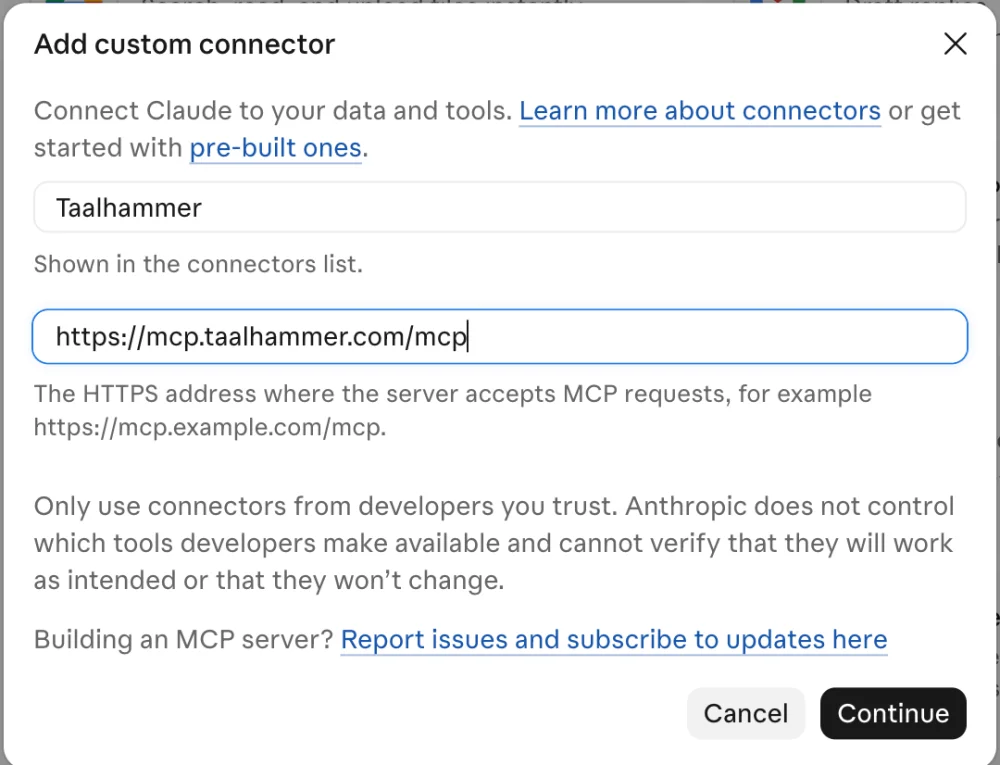
-
Click Connect next to Taalhammer. The first time you use a feature that needs your account, a Taalhammer sign-in window opens. Sign in, approve access, and you are ready.
Once Taalhammer is listed in the Connectors directory, you can find it under Discover instead of adding it by URL. Claude Desktop uses the same settings as claude.ai.
Claude Code
claude mcp add \
  --transport http taalhammer \
  https://mcp.taalhammer.com/mcp
Then run /mcp inside Claude Code and complete the sign-in when prompted.
Signing in
Sign-in uses OAuth. You sign in with your Taalhammer account and approve the connector's access on a Taalhammer consent page; the connector never sees your password. You can revoke access at any time in the Taalhammer app under Settings → Account → Connected apps.
What you can do
Without signing in
These tools work as soon as the connector is added:
| Tool | What it does |
|---|---|
search_articles |
Passages from Taalhammer's own articles, each with a link, on how to learn a language (spaced repetition, sleep, listening, grammar), how a Taalhammer feature works, and how Taalhammer compares with other apps. Your question is not sent to any AI provider. |
search_catalog |
Taalhammer's official courses (Core courses by CEFR level and Topic packs) for a language pair. |
get_radio_stations |
Radio stations in the language you are learning, each with a link to the station's official website, for listening practice. The connector itself plays nothing. |
get_plans_and_prices |
The plans and prices published on the Taalhammer pricing page (EUR; PLN on the Polish page), with its link. App Store and Google Play prices can differ. |
After signing in with your Taalhammer account
Your progress
| Tool | What it does |
|---|---|
get_my_stats |
Cards due today and tomorrow, your streak, and a 7-day review forecast as a table and a chart. |
get_weakest_cards |
The cards you have failed most often recently. |
get_memory_curve |
How much of what you learned you are likely to remember over the next 30 days without reviews (for accounts on the FSRS scheduler). |
get_my_content_subscriptions |
The collections in your library. |
get_my_subscription_status |
Your Taalhammer plan and trial status. |
Reviewing
| Tool | What it does |
|---|---|
get_review_cards |
Fetches cards to study: those due today, new cards, or a drill. |
get_card_answer |
Shows the answer of a card after you have tried to recall it. |
grade_card |
Records how it went (Easy / Almost / Difficult), so Taalhammer schedules the next review. |
Collections
| Tool | What it does |
|---|---|
search_collections |
Searches collections, including your own. |
get_collection |
Opens one collection with its cards. |
subscribe_collectionunsubscribe_collection |
Adds a collection to your library or removes it. |
add_to_favouritesremove_from_favourites |
Marks a collection as a favourite or unmarks it. |
Making your own cards
| Tool | What it does |
|---|---|
make_collection |
Opens the new-collection form, where you pick the languages, level and topic. |
get_collection_settings |
Reads the settings you confirmed in that form. |
preview_flashcards |
Shows the cards before anything is saved, and lets you pick the collection they go to. |
create_collection |
Creates a new collection. Collections created from the connector are always private; there is no option to publish them. |
import_flashcards |
Saves the cards (text only, up to 200 at a time) into one of your collections. |
Views
In assistants that support interactive views (MCP Apps), some results appear as a small panel in the conversation instead of plain text:
- Stats chart: your review forecast as a chart.
- Review card: one card at a time, with Show answer and the three grade buttons.
- Collection carousel: collections to browse, open, add to your library or mark as favourites.
- New-collection form: languages, level and topic for a collection you are about to make.
- Radio list: stations with links to their official websites.
Collection views show no images (no covers, no station logos). In assistants without views, the same information arrives as text.
How to use it
Talk to the assistant in plain language:
- "Let's learn German with Taalhammer" starts a review session from your library.
- "Review my cards" pulls the cards due today and runs a spaced-repetition review.
- "Find me a Dutch B1 collection and add it to my library"
- "How does Taalhammer's Listening mode work?"
- "Find a Spanish radio station to listen to"
- "How am I doing? Show my progress."
- "Which words do I keep forgetting?"
- "Make a new Dutch A2 collection about the kitchen."
- "Make flashcards from these sentences and add them to my Dutch collection."
During a review the assistant shows one card at a time. You see the prompt and try to recall the answer, then the answer is shown, and you rate yourself Easy / Almost / Difficult. Taalhammer schedules your next review of that card and the assistant moves on to the next one.
Free plan and subscription
Taalhammer starts with a free trial with full access. When the trial ends, your account carries on in a free mode with ten repetitions and ten listening sessions a day; everything you made stays yours. When a feature needs a subscription, or today's free allowance is used up, the connector says so and links to the plans.
Troubleshooting
- The assistant asks you to sign in, or says you are not signed in. Account features need your Taalhammer account. Follow the sign-in link or button the assistant shows, sign in and approve access. Public tools (article search, catalogue, radio, plans and prices) work without signing in.
- An error 401, or a message asking you to reconnect. Your sign-in has expired or was revoked. Disconnect the Taalhammer connector in your assistant's connector settings, connect it again and sign in.
- "Premium required", or a message that you need a subscription. The feature needs a paid plan, or today's free allowance is used up. See the plans; free repetitions are available again the next day.
- "No cards due for review right now." You are up to date. Ask for new cards or a drill, add a collection to your library, or come back later.
- Disconnecting and revoking access. Remove the connector in your assistant's connector settings, and revoke its access in the Taalhammer app under Settings → Account → Connected apps. Your collections and progress stay in your account.
- Anything else. Email info@taalhammer.com and tell us which assistant you use, what you asked and what happened.
Privacy and data
The connector receives only what the assistant sends to its tools, never your chat history, memory or files. Article search runs on Taalhammer's servers and sends your question to no AI provider; the assistant writes the answer from the passages it receives. Account features use a Taalhammer-issued access token that you can revoke at any time in the app under Settings → Account → Connected apps.
- Connector privacy policy: https://www.taalhammer.com/mcp-privacy/
- Taalhammer platform privacy policy: https://www.taalhammer.com/our-privacy-policy/
Security and content reports
To report a security issue or content in a collection that should not be there, email info@taalhammer.com.
Support
- Website: taalhammer.com
- Email: info@taalhammer.com